The New Downloader App Update (2026): Full Guide to AFTVnews v2 Features & Setup
The Downloader app by AFTVnews has officially rolled out its biggest update for 2026, bringing a complete redesign to the most popular sideloading tool on the market. This version moves away from the classic look to offer a more integrated experience, where web browsing and file management happen directly on a unified home screen. Whether you are using a Fire TV Stick, Android TV, or Google TV, these new features are designed to make finding and installing third-party apps faster and more user-friendly than ever before.
Table of Contents
What’s New in the 2026 Downloader App Update?
The core installation process for the Downloader app remains largely the same in 2026, but there are a few subtle differences in how you navigate the new menus once the app is open.
While the “Developer Options” steps for your Fire TV or Android TV haven’t changed, the way you interact with the app’s internal browser is where the update shows.
What Stays the Same:
-
Developer Options: You still need to click the device “Build” or “Name” 7 times to unlock the hidden developer menu.
-
Unknown Sources: You still must manually toggle “Install Unknown Apps” to ON for Downloader in your system settings.
-
Store Search: The app is still found by searching “Downloader” in the Amazon Appstore or Google Play Store.
What Has Changed in the Guide:
-
Permissions First: In the 2026 update, the app asks for file permissions immediately upon opening. If you don’t click “Allow” right away, the new “Delete All” and file management features won’t work.
-
Home Screen Browsing: You no longer have to click a “Browser” tab on the side. The new update places the URL bar and the browser directly on the home screen, so your guide should reflect that the user can start typing immediately.
-
The Shortcode Keypad: When instructing users to enter a code, you should now mention the “#” button. In older versions, users struggled with the full keyboard; now, telling them to use the keypad button makes your guide much more “up-to-date.
How to Install the New Downloader App on Fire TV Stick (Step-by-Step)
Installing the 2026 update on Fire TV, Fire TV Stick, Fire TV Stick Lite, Fire TV Stick 4K, Fire TV Stick 4K Max, Fire TV Cube, and Fire TV Smart TV, Amazon has hidden/removed the Developer Options menu where you can enable ADB debudding and enable installing apps from unknown sources, such as Downloader.
- These instructions show you how to unhide/reveal the Developer Options menu.

To unlock the developer menu on your Fire TV device, follow these steps based on your specific model:
-
For Fire TV Stick, Cube, or standard Fire TV: Navigate to Settings > My Fire TV > About.
-
For Fire TV Smart TVs: Go to Settings > Device & Software > About.

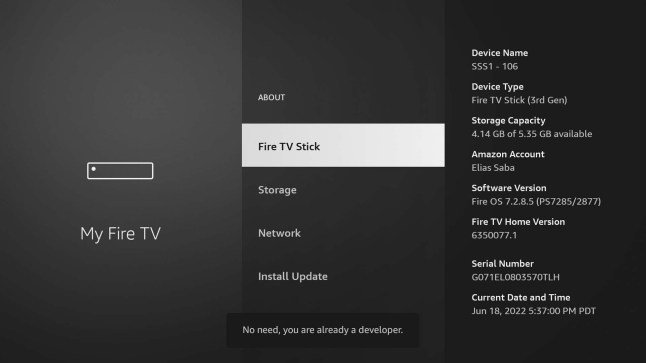
Once you are in the About section, highlight the first item in the list (usually your device name).
- Click the Select button on your remote repeatedly.
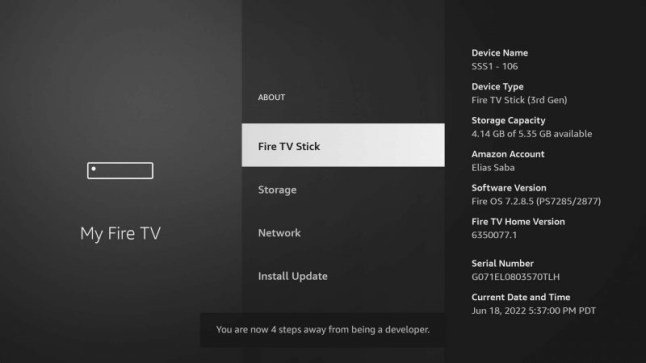
- After about 7 clicks, a message will appear at the bottom stating, “No need, you are already a developer.”
Now that you have enabled developer options, you can start the process of installing the Downloader app.
- As mentioned earlier, the download steps remain consistent. Just follow this step-by-step guide to get everything set up.
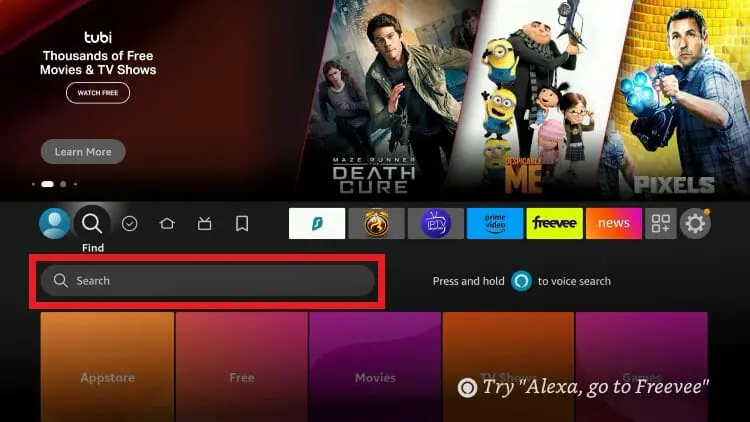
- Search and select Downloader
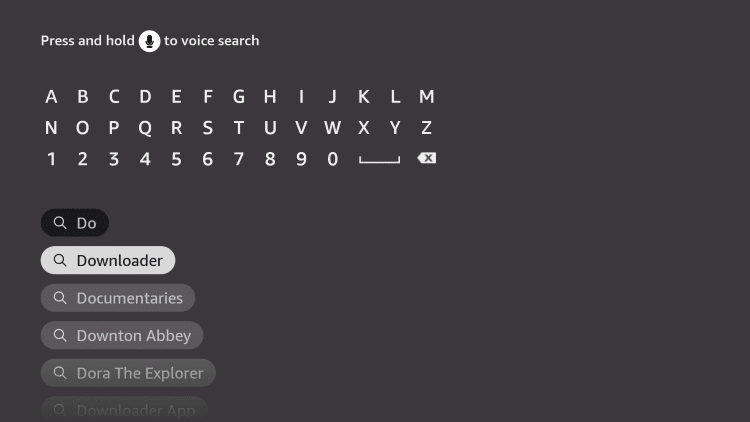
- Choose the Downloader app.

- Make sure it’s by : AFTVnews.com
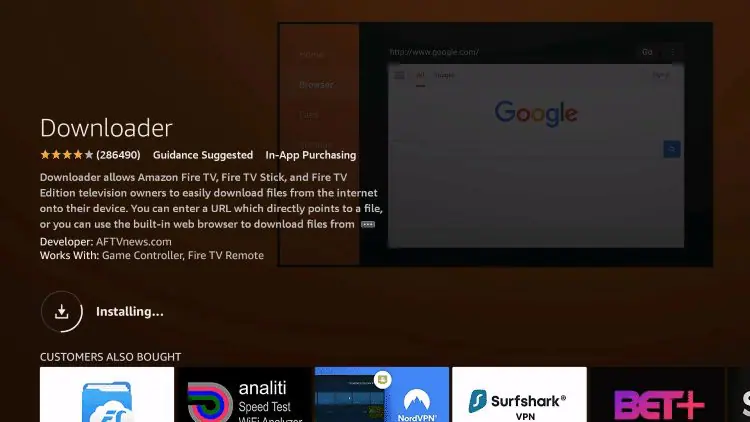
- You will see a notification in the bottom right-hand corner once installation has finished
How To Install Downloader on Android TV
- Select the Google Play Store from the home screen.
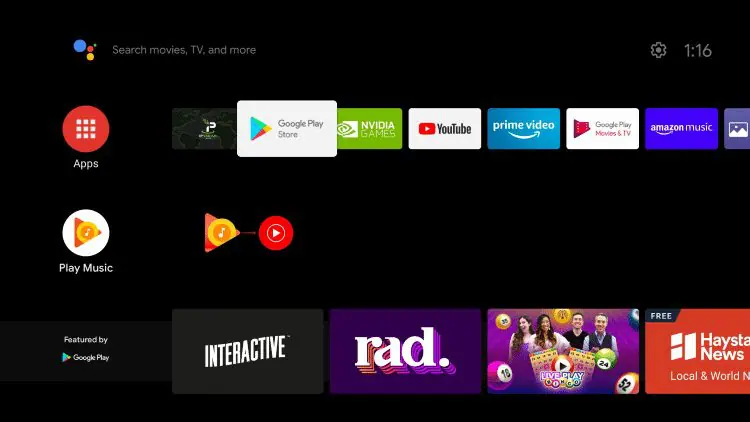
-
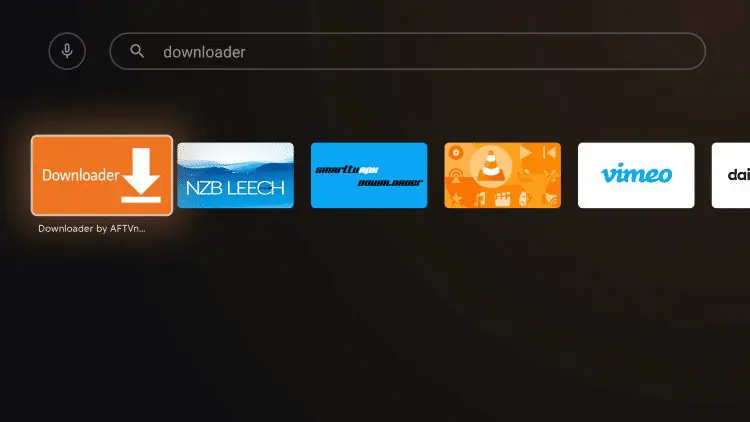
Click the search icon. Search and Select downloder

-
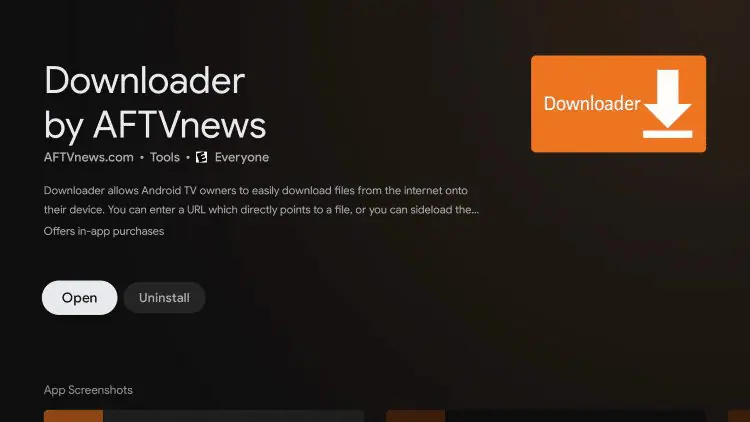
make sure to select the Downloader by AFTVnews
-
Click on instal and you are Done
How To Install Downloader on Google TV
-
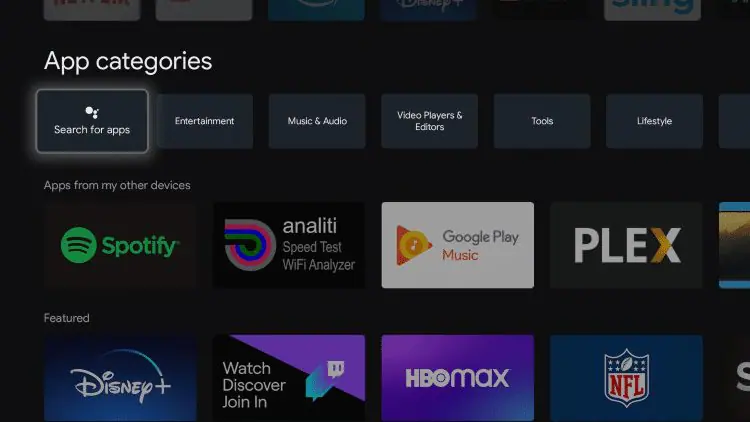
Click Apps from the main menu.
-
Click Search for apps.
-
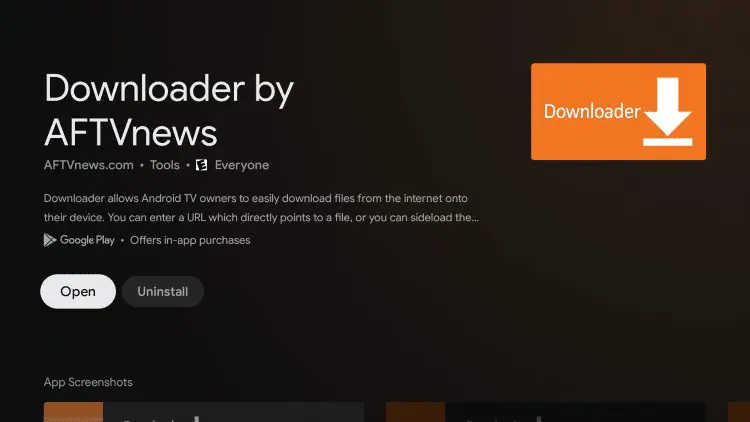
within the search bar and click the search icon typing “ Downloader ”

-
chose the one that is made by AFTVnews and Click on instal
-
And you are all done
Frequently Asked Questions (FAQ)
Q:What is the new "#" button in the Downloader app?
The “#” button is a new 2026 feature located next to the address bar. It opens a numeric keypad on your TV screen, allowing you to enter 5-digit shortcodes much faster than using the standard QWERTY keyboard.
Q: Is the Downloader app update (v2) free?
Yes, the latest update from AFTVnews remains completely free to use. While there are options to support the developer, the core features like web browsing, file downloading, and the new keypad shortcut do not require payment.
Q: How do I fix the "Browser Plugin" error in the 2026 update?
If your browser isn’t loading pages, you likely need the plugin. Open Downloader, type browser.aftvnews.com in the URL bar, and follow the prompts to install the plugin. This enables full web navigation on FireStick and Android TV.
Q: Why is Downloader not showing in my App Store?
If you cannot find the app, your device may be running a non-Android operating system (like the new Vega OS on some newer Firesticks). Only Android-based devices like the Fire TV Stick 4K Max or Chromecast with Google TV support the Downloader app.
Q: How do I delete all downloaded files at once?
In the 2026 update, go to the Files menu on the left sidebar. You will now see a “Delete All Files” button at the top. This allows you to clear your storage space in one click instead of deleting APKs individually.
Q: Can I use Downloader on Google TV and Android TV?
Yes. The app is fully optimized for Google TV and Android TV devices like the Nvidia Shield or Onn Box. You can find it directly in the Google Play Store, though you still need to enable “Unknown Sources” in your system settings to install apps.